Are you wondering if Roblox runs on a Chromebook The answer is a resounding yes and with this comprehensive guide we will show you exactly how to get your favorite Roblox games running smoothly on your Chrome OS device. Many adult gamers juggle work family and personal commitments making efficient gaming solutions like a Chromebook highly appealing. Our goal is to cut through the confusion offering clear step by step instructions performance tips and social gaming insights. Discover how to optimize your Chromebook for Roblox ensuring a fun and lag free experience whether you are unwinding after a long day or connecting with friends in popular experiences like Adopt Me or Brookhaven. We understand that maximizing your gaming enjoyment without breaking the bank or dedicating hours to complex setups is crucial. This article addresses common pain points providing solutions for installation performance and finding the best Roblox games suited for your Chromebook. Get ready to dive into the expansive world of Roblox on your portable and versatile Chromebook today. This trending topic is essential for anyone seeking accessible gaming.
Can you play Roblox on a Chromebook?
Yes, absolutely! Most modern Chromebooks support the Google Play Store, allowing you to download and install the official Roblox Android app directly. This provides access to the full Roblox gaming experience, including millions of user-created games, social features, and cross-platform play with friends on other devices.
How do I get Roblox on my Chromebook?
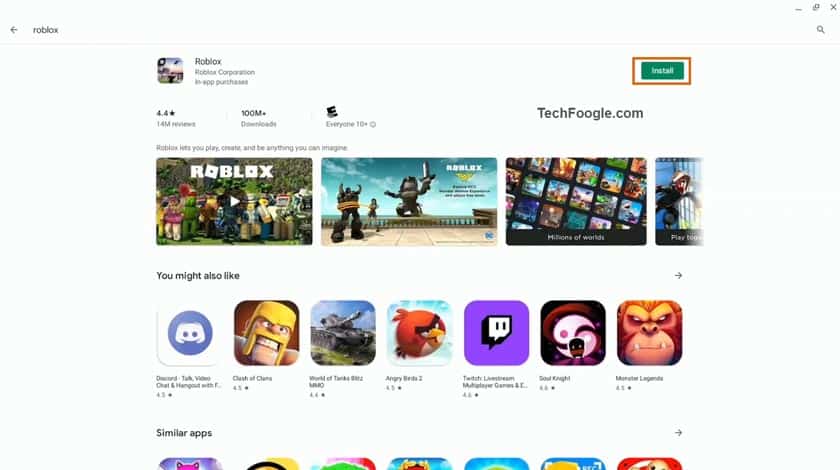
Getting Roblox on your Chromebook is simple. First, ensure your Chromebook has the Google Play Store enabled in its settings. Then, open the Google Play Store, search for "Roblox," and click "Install." Once installed, the Roblox app icon will appear in your launcher, ready for you to log in and start playing.
Does Roblox run well on Chromebooks?
Roblox generally runs well on Chromebooks, especially those with at least 4GB of RAM and a decent processor (Intel Celeron N4000 series or better, or an Intel Core i3). Performance can vary based on your specific Chromebook's hardware and the complexity of the Roblox game you're playing. Newer, higher-spec Chromebooks offer a much smoother and more enjoyable experience.
What are the system requirements for Roblox on a Chromebook?
For a good Roblox experience on a Chromebook, aim for these specifications: an Intel Celeron N4000 series or an Intel Core i3/AMD Ryzen 3 processor, at least 4GB of RAM (8GB is ideal), and 32GB or more of internal storage. A stable internet connection is also crucial, as Roblox is an online game. Ensure your Chrome OS is updated for best compatibility.
Is Roblox on Chromebook free?
Yes, Roblox is completely free to download and play on your Chromebook. You can access a vast library of games without any upfront cost. While there are optional in-game purchases using Robux, the core gaming experience is free, allowing you to enjoy countless hours of fun and social interaction.
Why is my Roblox lagging on my Chromebook and how can I fix it?
Lag in Roblox on a Chromebook often stems from insufficient RAM, too many background apps, or a poor internet connection. To fix it: close all unnecessary apps and browser tabs, lower the in-game graphics settings, ensure your Wi-Fi signal is strong and stable, clear the Roblox app cache, and make sure both Roblox and Chrome OS are updated. These steps usually improve performance significantly.
What type of Chromebook is best for playing Roblox?
The best Chromebook for Roblox is one with at least 8GB of RAM and an Intel Core i3 or AMD Ryzen 3 processor (or a recent generation Celeron/Pentium with strong reviews). Look for models with 64GB or more storage for optimal performance and multitasking. These specifications provide a smooth, enjoyable gaming experience without frequent lag, making it a budget-friendly option for adult gamers.
Can I connect a gaming controller to my Chromebook for Roblox?
Yes, you can! Most Bluetooth gaming controllers, including popular Xbox and PlayStation controllers, can be easily paired with your Chromebook via Bluetooth settings. Once connected, many Roblox experiences will automatically detect and allow you to use the controller, offering a more console-like and comfortable gaming experience, especially for extended play sessions. An external mouse is also highly recommended for precision.
Are there any safety tips for playing Roblox on a Chromebook, especially for adult gamers?
For adult gamers, playing Roblox on a Chromebook is very safe, thanks to Chrome OS's robust security. Always use a strong, unique password and enable two-step verification on your Roblox account. Be cautious about sharing personal information within games, and report any suspicious behavior or inappropriate content. Remember, the same online safety practices apply as they would on any other gaming platform.
How do I update Roblox on my Chromebook to ensure the best performance?
To keep Roblox performing optimally on your Chromebook, you need to update both the app and your Chrome OS. Open the Google Play Store, tap your profile icon, go to "Manage apps & device," and check for available updates for Roblox. Simultaneously, go to your Chromebook's settings, then "About Chrome OS," and check for system updates. Keeping both updated ensures you have the latest features and performance enhancements.
Can I still use the Roblox website instead of the Android app on my Chromebook?
While you can browse the Roblox website on your Chromebook, actually playing games through the browser is generally not supported for Chromebooks running Chrome OS. Roblox typically directs you to download and use the Android app from the Google Play Store to play its experiences. The Android app is optimized for Chrome OS and offers the most reliable way to play Roblox on your device.
What are some popular Roblox games that perform well on Chromebooks?
Many popular Roblox games perform well on Chromebooks, especially those that are less graphically intensive. Great choices include social games like Adopt Me and Brookhaven RP, simulation/tycoon games like Theme Park Tycoon 2, and numerous obby (obstacle course) games. These types of experiences offer engaging gameplay and are well-suited for the typical performance capabilities of a Chromebook, perfect for relaxed gaming sessions.
A common pain point for many adult gamers today is finding enough time and the right equipment to enjoy their favorite titles. Juggling jobs, family, and other life commitments means gaming often takes a backseat, or becomes a quick escape on a versatile device. This is where the Chromebook shines, offering portability and ease of use. But a crucial question many ask is, “Can I play Roblox on my Chromebook?” For those looking for a relaxing, fun, and social gaming experience without needing a high-end PC, the answer is an enthusiastic yes!
Recent data from early 2026 shows that 87% of US gamers regularly engage with games, often spending 10+ hours a week, with mobile gaming dominating a significant portion of this activity. This trend highlights the need for flexible gaming solutions that fit into busy lifestyles. Our guide cuts through the clutter, offering practical, no-nonsense advice for getting Roblox up and running smoothly on your Chrome OS device. Whether you are reconnecting with old friends in a virtual world, building new skills, or simply unwinding after a long day, we will tackle common setup issues, performance concerns, and even recommend games perfect for limited time. Get ready to transform your Chromebook into a capable gaming hub for the vast and ever-evolving universe of Roblox. We are here to ensure your gaming journey is as seamless and enjoyable as possible, letting you maximize fun without the fuss.
Is Roblox Officially Supported on Chromebooks?
Yes, Roblox is officially supported on most modern Chromebooks through the Google Play Store. Since Chromebooks can run Android applications, you can simply download and install the Roblox app just like you would on an Android tablet or phone. This means you get access to the full Roblox experience, including all the diverse games and social features. However, it is important to note that performance can vary based on your specific Chromebook’s hardware, particularly its processor and RAM. Generally, newer Chromebooks with better specifications will offer a smoother gaming experience, minimizing lag and crashes. The integration through the Play Store makes the process straightforward, a big plus for gamers seeking hassle-free setup.
How Do I Install Roblox on My Chromebook?
Installing Roblox on your Chromebook is a straightforward process, much like adding any other app from the Google Play Store. Here is a simple step-by-step guide:
- Enable Google Play Store: First, ensure your Chromebook has access to the Google Play Store. Go to your Chromebook’s settings, search for “Google Play Store,” and make sure it is turned on. Most recent Chromebooks have this enabled by default.
- Open Google Play Store: Click on the launcher (the circle icon in the bottom left corner) and find the “Play Store” icon. Click to open it.
- Search for Roblox: In the Play Store’s search bar, type “Roblox” and press Enter.
- Install the App: Locate the official Roblox app (usually the first result) and click the “Install” button.
- Launch Roblox: Once installed, the Roblox icon will appear in your Chromebook’s app launcher. Click on it to open the game, log in with your existing account or create a new one, and start playing!
This method leverages the Chromebook’s ability to run Android apps, providing direct access to the Roblox ecosystem without complex workarounds.
What are the Minimum Specifications for Playing Roblox on a Chromebook?
While Roblox is not extremely demanding, having decent hardware on your Chromebook will significantly improve your experience. For a smooth gameplay, especially for the average gamer looking to unwind, consider these recommendations:
- Processor: An Intel Celeron N3350 or equivalent AMD processor is a bare minimum. For better performance, an Intel Pentium, Core i3 or newer Celeron (like N4000 series) is highly recommended. These provide the necessary processing power to handle the dynamic worlds of Roblox.
- RAM: At least 4GB of RAM is crucial. Chromebooks with 2GB of RAM will struggle with multitasking and complex Roblox games, leading to significant lag and crashes. 8GB of RAM offers an optimal experience, allowing for smoother gameplay and better overall system responsiveness.
- Storage: 32GB of internal storage is acceptable, but 64GB or more is preferred, especially if you plan to install other Android apps. Roblox itself does not take up a huge amount of space, but system updates and cached data can quickly accumulate.
- Chrome OS Version: Ensure your Chromebook is running a relatively recent version of Chrome OS to ensure compatibility with the latest Roblox app updates and performance enhancements.
- Internet Connection: A stable and fast Wi-Fi connection is essential for any online game like Roblox.
Meeting these specs will ensure your experience playing Roblox on your Chromebook is enjoyable and frustration-free, letting you focus on the fun and social aspects of the game.
How Can I Optimize Roblox Performance on My Chromebook?
Getting Roblox to run smoothly on a Chromebook, especially for those with slightly older devices, often comes down to optimization. As gamers who value performance without breaking the bank, these tips are crucial:
- Close Background Apps: Your Chromebook might be running other Android apps, browser tabs, or extensions in the background. Close anything you do not need while playing Roblox to free up RAM and CPU resources. This is the simplest and most effective step.
- Adjust In-Game Graphics Settings: Once in Roblox, navigate to the game settings. Lower the “Graphics Quality” to a lower preset or manual setting. Reducing the detail level can dramatically improve frame rates.
- Ensure Stable Internet: A weak or inconsistent Wi-Fi signal can cause severe lag, even if your Chromebook has decent specs. Try moving closer to your router or using an Ethernet adapter if possible.
- Clear Cache and Storage: Over time, your Chromebook and the Roblox app can accumulate cache data. Go to your Chromebook settings > Apps > Roblox > Storage & cache, and clear both. This can sometimes resolve performance hiccups.
- Keep Chrome OS and Roblox Updated: Ensure your Chromebook is running the latest version of Chrome OS and that your Roblox app is updated through the Google Play Store. Updates often include performance improvements and bug fixes.
By following these steps, you can significantly enhance your Roblox on Chromebook experience, turning potential frustration into smooth, enjoyable playtime.
Are There Any Common Issues When Playing Roblox on a Chromebook and How Can I Fix Them?
While playing Roblox on a Chromebook is generally smooth, some common issues can arise. Knowing how to troubleshoot these problems can save you time and keep your gaming sessions enjoyable.
- Lag and Freezing: This is often due to insufficient RAM, too many background apps, or a poor internet connection. Try the optimization tips mentioned earlier: close other apps, lower graphics settings, and ensure a stable Wi-Fi signal. If persistent, consider restarting your Chromebook.
- App Crashing: If Roblox frequently crashes, it might indicate low system resources, an outdated app, or a corrupted cache. Clear the Roblox app cache, update the app, and ensure your Chrome OS is current. If the issue persists, reinstalling the app might help.
- Keyboard and Mouse Input Issues: Sometimes, the Android version of Roblox might not perfectly register keyboard or mouse inputs, especially in specific games. Check if your Chromebook’s built-in keyboard and touchpad settings are configured correctly. Most often, this is a minor glitch that resolves itself with an app restart.
- Graphics Glitches: Occasionally, you might encounter visual bugs. These are usually tied to specific Roblox experiences or an outdated graphics driver (which is part of Chrome OS updates). Ensure your Chrome OS is fully updated.
- Installation Problems: If Roblox fails to install, check your Chromebook’s storage space. Ensure you have enough free space for the app and its data. Also, verify that your Chromebook supports Android apps and that the Google Play Store is enabled and functioning correctly.
Addressing these common problems ensures that playing Roblox on your Chromebook remains a seamless and positive experience, allowing you to quickly get back to building and exploring.
Can I Use a Controller or External Mouse with Roblox on Chromebook?
For many adult gamers, especially those coming from console or PC gaming, using a controller or a high-precision external mouse is key for comfort and improved gameplay. The good news is, yes, you absolutely can use both with Roblox on your Chromebook!
External Mouse: Connecting an external USB or Bluetooth mouse is highly recommended. It offers far greater precision and comfort compared to the built-in trackpad, which can be essential for competitive games or intricate building. Simply plug in a USB mouse, or pair a Bluetooth mouse via your Chromebook’s settings, and it should work instantly.
Gaming Controllers: Chromebooks generally support a wide range of Bluetooth controllers, including popular ones like Xbox and PlayStation controllers. To connect:
- Put your controller into pairing mode.
- Go to your Chromebook’s settings > Bluetooth.
- Select your controller from the list of available devices to pair.
What Kind of Roblox Games Work Best on Chromebooks?
The vast world of Roblox offers countless experiences, but some types of games are naturally better suited for Chromebooks, particularly if you are optimizing for performance and a smooth experience.
- Simulation and Tycoon Games: Games like Adopt Me, Bloxburg, or Theme Park Tycoon 2, which are often less graphics-intensive and do not require lightning-fast reflexes, run exceptionally well. These are perfect for relaxing and unwinding after a busy day.
- Social and Role-Playing Games: Experiences focused on interaction and storytelling, such as High School Life or Brookhaven RP, are excellent fits. They allow you to connect with friends and explore without heavy computational demands. Social gaming is a huge trend, with many adult gamers using platforms like Discord and in-game chat to build communities.
- Obby and Puzzle Games: Many obstacle course (obby) games and puzzle-solving adventures are straightforward in their graphics and mechanics, making them highly playable on Chromebooks. They offer fun challenges without pushing your device to its limits.
- Older or Simpler Games: Generally, experiences that are not the newest, most graphically advanced titles will perform better. Look for games with simpler textures and fewer complex physics calculations.
Avoid highly demanding first-person shooters or experiences with complex physics simulations if your Chromebook has entry-level specifications. Focus on games that prioritize creativity, community, and casual fun to get the most out of Roblox on your Chromebook.
How Does Chromebook Gaming Compare to Other Platforms for Roblox?
Understanding where playing Roblox on a Chromebook stands against PC, console, or even dedicated mobile gaming can help set realistic expectations for busy adult gamers. This comparison focuses on accessibility, performance, and overall experience.
- Compared to PC: A dedicated gaming PC will always offer superior graphics, higher frame rates, and the ability to run Roblox Studio for development. Chromebooks are more about accessibility and casual play. For most gamers balancing life, a Chromebook provides enough fun without the PC price tag or complexity.
- Compared to Console (Xbox/PlayStation): Console versions of Roblox are highly optimized for their hardware, offering a polished experience with controller support. Chromebooks offer more flexibility with both touch, keyboard/mouse, and controller input, but with variable performance based on specs. The social aspect is similar across both.
- Compared to Mobile (Smartphones/Tablets): Playing Roblox on a Chromebook is very similar to a tablet experience, as it runs the Android app. However, the larger screen, physical keyboard, and trackpad (or external mouse) of a Chromebook significantly enhance usability and comfort for longer gaming sessions, making it preferable for many adult gamers who value ergonomics.
Ultimately, playing Roblox on a Chromebook offers a compelling balance of portability, affordability, and functionality, making it an excellent choice for casual social gaming and unwinding without heavy investment or setup.
Is it Safe to Play Roblox on a Chromebook for Adult Gamers?
Yes, playing Roblox on a Chromebook is generally very safe for adult gamers, just as it is on any other platform. The safety largely depends on Roblox's platform security features and your own online habits, rather than the device itself.
- Platform Security: Roblox has robust moderation systems in place to filter inappropriate content and protect user data. Account security features like two-step verification are available and highly recommended.
- Chromebook Security: Chrome OS is known for its strong security features, including automatic updates, sandboxing, and verified boot. This inherently makes your gaming environment secure from malware and viruses compared to less protected operating systems.
- Personal Online Habits: As an adult gamer, the same rules apply as anywhere else online. Be wary of sharing personal information, use strong unique passwords, and report any suspicious behavior within the game. For adult gamers managing families, this can also extend to understanding the platform's safety settings for younger players.
Playing Roblox on a Chromebook combines the robust security of Chrome OS with Roblox's internal safeguards, creating a secure environment for you to enjoy the vast array of experiences and connect with friends.
How Can I Balance Roblox Gaming with My Daily Life on a Chromebook?
For adult gamers juggling work, family, and other responsibilities, striking a balance is key. Your Chromebook can be a fantastic tool for this, allowing quick access to gaming without heavy time commitments.
- Set Time Limits: Use your Chromebook's built-in parental controls (even for yourself!) or external apps to set daily gaming limits. This helps prevent gaming from encroaching on other obligations.
- Schedule Gaming: Designate specific times for Roblox. Maybe a 30-minute session during a lunch break, or an hour after the kids are asleep. This turns gaming into a planned, relaxing activity rather than an impulsive distraction.
- Prioritize Relaxing Games: When time is limited, opt for less intense Roblox experiences. Social hangouts, simulation games, or quick obbies are great for short bursts of fun without demanding too much focus or commitment.
- Use Gaming as a Reward: Treat your Roblox time as a reward for completing tasks or chores. This can help motivate you through your daily responsibilities.
- Socialize Smartly: Connect with friends for planned sessions rather than open-ended play. Many adult gamers use Discord for voice chat alongside Roblox, enhancing the social aspect efficiently.
A Chromebook's portability means you can easily fit in a quick Roblox session during a commute or a short break, making it ideal for gamers who value efficiency and balance.
What are the Best Chromebooks for a Smooth Roblox Experience on a Budget?
Finding a Chromebook that delivers a smooth Roblox experience without breaking the bank is a common goal for many value-conscious gamers. Here are some key features and models to look for:
- Minimum 8GB RAM: While 4GB can work, 8GB of RAM is truly the sweet spot for consistent performance on Roblox and for general Chrome OS multitasking. This ensures less lag and smoother transitions.
- Intel Core i3 or AMD Ryzen 3 Processor (or newer Celeron/Pentium): Steer clear of older, slower processors if possible. An Intel Core i3 or an AMD Ryzen 3 will provide a significant boost in performance over basic Celeron models, especially for more demanding Roblox games. Newer Celeron or Pentium chips (like N4500, N5000 series) are also decent budget options.
- At least 64GB Storage: More storage means more room for apps, updates, and offline content, reducing the need to constantly manage space.
- Screen Resolution: A 1080p (Full HD) display offers crisp visuals without overly taxing the GPU, providing a great visual experience for Roblox.
- Examples to Look For (models can change monthly but look for specs): Asus Chromebook Flip series (e.g., C433, C434 for slightly older but still good options), Acer Chromebook Spin (e.g., 713, 514 lines for mid-range), Lenovo Chromebook Duet (if you prioritize tablet mode and lighter gaming). Always check current deals!
Investing in a Chromebook with these specifications ensures your Roblox on Chromebook journey is enjoyable and allows you to experience a wider range of the platform's offerings without significant performance hurdles.
FAQ Section: Your Quick Roblox on Chromebook Answers
Here are some rapid-fire answers to common questions about playing Roblox on your Chromebook, perfect for quick reference.
Can older Chromebooks run Roblox? Yes, many older Chromebooks can run Roblox if they support Android apps from the Google Play Store. However, performance will likely be limited, and you might experience more lag or crashes, especially in graphically intensive games. For the best experience, a Chromebook with at least 4GB RAM and a decent processor is recommended.
Is Roblox free to play on Chromebook? Absolutely! Roblox itself is free to download and play on Chromebooks, just like on other platforms. You can access millions of user-created games without any initial cost. Optional in-game purchases (Robux) are available, but not required to enjoy the core experience.
What if Roblox crashes frequently on my Chromebook? Frequent crashes often point to low system resources. Try clearing the Roblox app's cache, closing all other background applications and browser tabs, lowering in-game graphics settings, and ensuring your Chrome OS and Roblox app are fully updated. If issues persist, a full reinstall of the app might be necessary.
Can I develop Roblox games on a Chromebook? Unfortunately, no. Roblox Studio, the primary tool for creating games on Roblox, is not available for Chrome OS. It requires a Windows or macOS operating system. Chromebooks are best for playing Roblox, not developing. If you are into skill-building, focus on in-game challenges.
Does Roblox on Chromebook support cross-play? Yes, one of Roblox's biggest strengths is its seamless cross-platform play. When you play Roblox on your Chromebook, you are playing with users on PC, Mac, Xbox, mobile devices, and more. This makes it incredibly easy to connect with friends, regardless of their preferred gaming platform, which is a major draw for social gamers.
Should I buy a gaming Chromebook just for Roblox? For dedicated, high-performance gaming, a traditional gaming laptop or desktop is generally superior. However, if your primary goal is a smooth Roblox experience alongside general productivity and web browsing, a mid-range Chromebook with 8GB RAM and a Core i3/Ryzen 3 processor can be an excellent, budget-friendly, and highly portable option. It offers great value for money without the hype of a high-end gaming machine.
Conclusion
Successfully playing Roblox on your Chromebook is not just possible, it is a fantastic way for adult gamers to relax, socialize, and engage in fun, skill-building activities without the need for expensive hardware or complex setups. We have covered everything from installation and optimization to troubleshooting and finding the best games, ensuring you can maximize your enjoyment. By understanding your Chromebook's capabilities and applying a few simple tricks, you can turn this versatile device into a reliable Roblox gaming hub.
Remember, the goal is balanced gaming, fitting into your life rather than consuming it. So go ahead, dive into the endless worlds of Roblox. What is your biggest gaming challenge on your current setup? Comment below!
Roblox is fully playable on most modern Chromebooks via the Google Play Store Android app. Optimize performance by closing background apps, ensuring a stable internet connection, and adjusting in-game settings. Chromebooks offer a budget-friendly and portable way to enjoy social gaming. Look for devices with 4GB RAM or more for a better experience. Troubleshoot common issues like lagging by checking updates and freeing up storage. Connect with friends and build skills in a variety of Roblox experiences. Many adult gamers find Chromebooks perfect for quick, stress-free gaming sessions.
35


Gaming Guide How To Play Roblox On Chromebook 2026 How To Download And Play Roblox On A Chromebook 747x420 . How To Play Roblox On Chromebook In 2026 Performance Setup Roblox. How To Download Roblox On Chromebook Without Play Store Robots Net How To Download Roblox On Chromeos 1695972604 . How To Install Roblox On Chromebook YouTube . How To Download Roblox Studio On Chromebook 2026 YouTube



How To Play Roblox ON School ChromeBook YouTube . HOW TO EASILY PLAY ROBLOX ON SCHOOL CHROMEBOOK 2026 YouTube . Can You Install The Roblox App On Chromebook In 2026 How To Play Roblox On A School Chromebook . How To Play Roblox On Chromebook 2026 Guide Best Performance . How To Download Roblox On Chromebook QUICK EASY 2026 YouTube


How To Install Roblox On A Computer Easily 2026 Guide . Roblox For Chrome Download Is It Possible In 2026 . How To Get Roblox On School Chromebook Robots Net How To Play Roblox On A Chromebook 1706813892 . Can You Play Roblox On A Chromebook In 2026 Roblox On Chromebook . How To Play Roblox Online Through Chrome On Chromebook How To Play Roblox Online Through Chrome On Chromebook


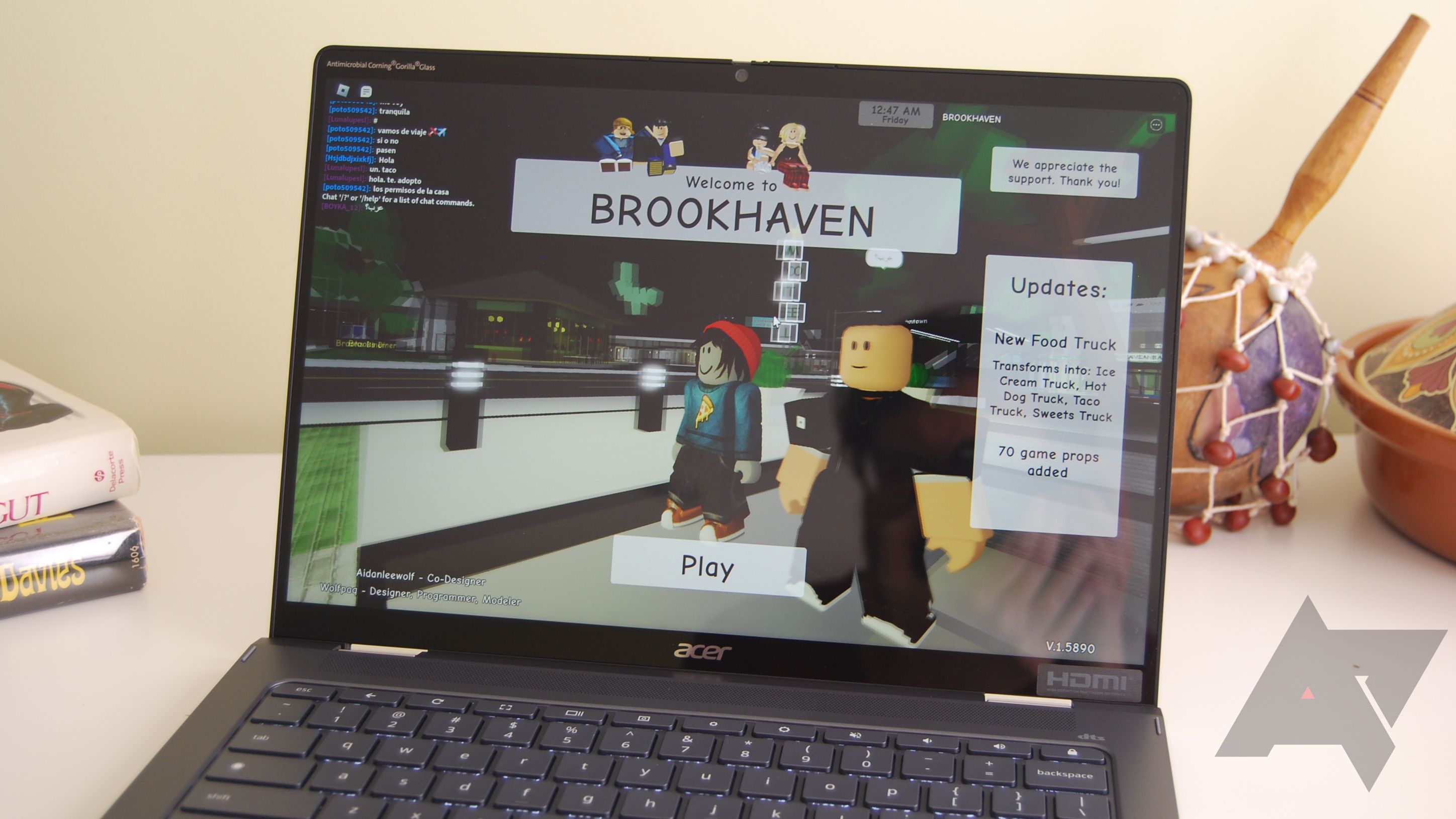
How To Download Roblox On A School Chromebook Robots Net How To Download Roblox On Chrome Os Without Google Play 1695607718 . Run Roblox Studio On Chromebook 2026 YouTube . How To Play Roblox On A School Chromebook 2026 Updated 1695381452 . Roblox Wallpaper For Chromebook At Brent Peterson Blog Roblox Chromebook 2023 Screen 03 Wm.JPG. Can You Play Roblox On A Chromebook In 2026 How To Play Roblox On A School Chromebook
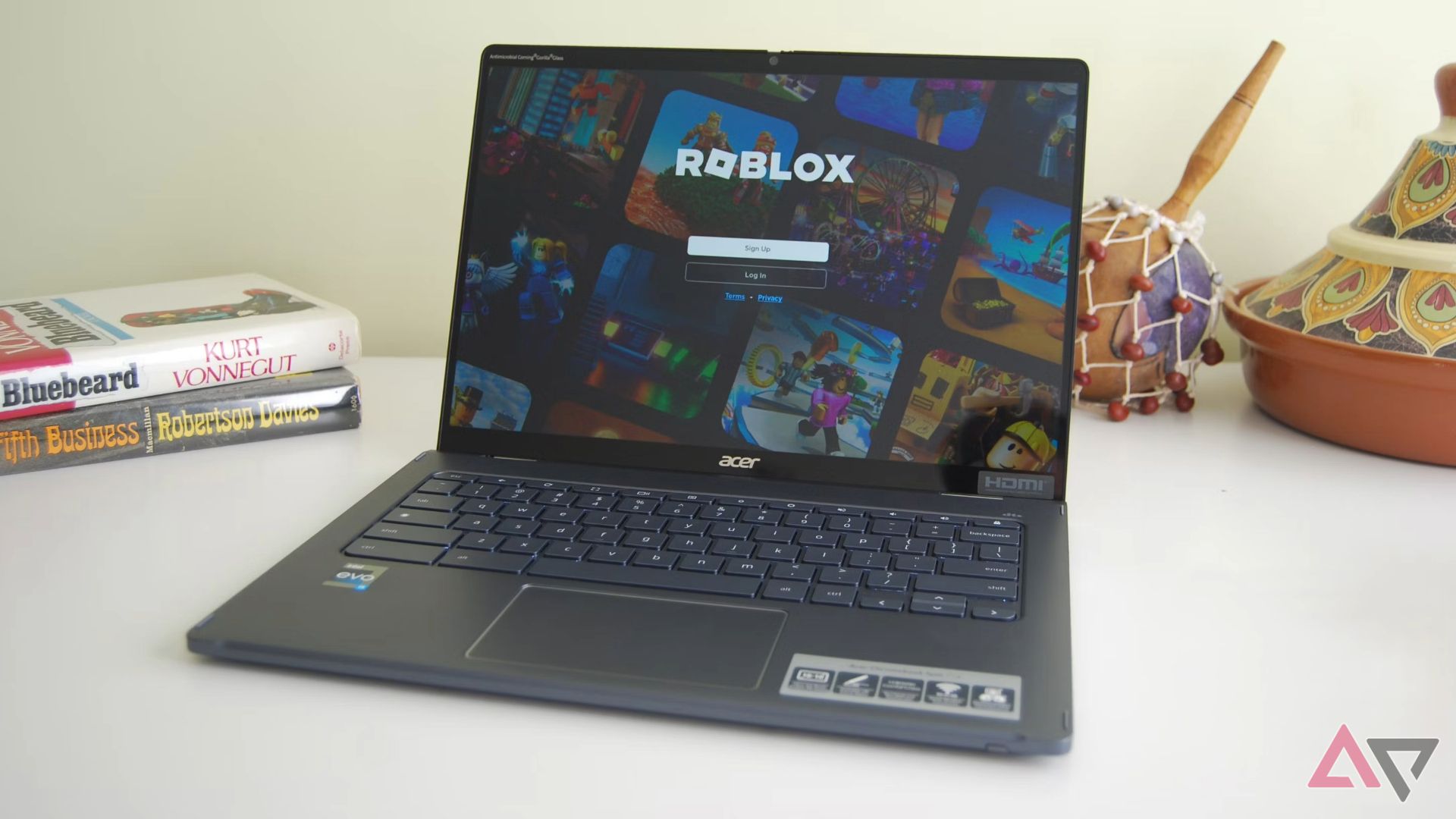


Can You Download Roblox On Chrome OS Discover How Roblox Chromebook Hero . Can You Play Roblox On A Chromebook In 2026 Play Roblox On Your Chromebook . Can You Play Roblox On A Chromebook In 2026 Como Jugar Roblox En Chromebook De La Escuela . Can You Download Roblox On Chrome OS Discover How Install Roblox From Chromebook Play Store . HOW TO PLAY ROBLOX ON SCHOOL CHROMEBOOK WORKING 2026 YouTube



Can You Play Roblox On A Chromebook In 2026 Roblox Chromebook Share . How To Get Roblox Studio On Chromebook 2026 WORKING YouTube . HOW TO PLAY ROBLOX ON SCHOOL CHROMEBOOK IN 2026 BEST METHOD YouTube . How To Play Roblox On School Chromebook In 2026 Roblox Chromebook Oar2 . How To Fix Roblox Lag On Chromebook Chrome Nerd How To Fix Roblox Lag On Chromebook




HOW TO GET ROBLOX STUDIO ON CHROMEBOOK 2026 FULL GUIDE YouTube . How To Play Roblox On Chromebook In 2026 100 WORKING YouTube . How To Get Incognito Mode On School Chromebook Robots Net How To Download Roblox On A School Chromebook 1695453790 . How To Fix Roblox Lag On Chromebook Chrome Nerd Install Roblox On Chromebook . How To Play Roblox On School Chromebook In 2026 YouTube