For many gamers, immersing themselves in their favorite virtual worlds often goes hand in hand with a killer soundtrack. Roblox, a massively popular platform boasting millions of daily active users, offers a universe of player-created experiences. But a common question arises for players balancing gaming with their busy lives, often juggling work, family, and limited free time: can you listen to music while on Roblox? This comprehensive guide dives into the various ways you can integrate your personal playlists with your Roblox adventures, whether you are building, exploring, or socializing. We will cover official in-game options, third-party solutions, and essential tips for optimizing your audio experience without disrupting gameplay or violating terms of service. Discover how to enhance your Roblox sessions, find the perfect background tunes, and manage your audio settings efficiently, ensuring maximum enjoyment and a seamless blend of your digital and auditory worlds. Learn about current trends and best practices to keep your gaming experience fresh and personalized.
Q: Can I use a custom MP3 as background music in Roblox?
A: Unfortunately, directly uploading and playing personal MP3 files as background music within Roblox games is not supported for users due to copyright restrictions and platform policies. Game developers can upload audio for their specific experiences, but regular players cannot inject custom MP3s into general gameplay. Most players use external streaming services for their personal soundtracks.
Q: Does playing external music affect my Roblox game performance?
A: Yes, running external music applications like Spotify or YouTube in the background alongside Roblox can consume additional CPU, RAM, and bandwidth. On older devices or those with limited resources, this might lead to minor frame rate drops, slower loading times, or increased battery drain, especially on mobile. Optimizing app settings and closing unnecessary programs can help mitigate this.
Q: Are there any free music apps recommended for listening while on Roblox?
A: Absolutely! Popular free options include Spotify Free, YouTube Music (with ads), Pandora, and various internet radio apps. Many gamers also utilize free lo-fi or instrumental music streams on YouTube. Just be mindful of ad interruptions that can break immersion, and ensure the app runs efficiently in the background without hogging resources.
Q: How do I control external music without leaving Roblox?
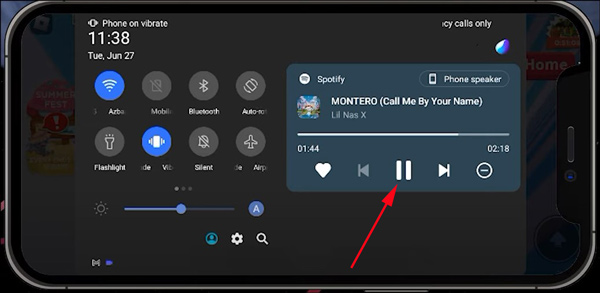
A: On PC, you can often use media keys on your keyboard (play/pause, skip) or integrate a widget with your music app. On mobile, quick-access menus (like the control center on iOS or notification shade on Android) allow you to manage playback without fully exiting the Roblox app. Some gaming headsets also have dedicated controls for convenience.
Q: Can Roblox moderators detect if I am listening to external music?
A: No, Roblox moderators cannot detect if you are listening to music through an external application on your device. Your external audio playback is completely separate from the Roblox client and its servers. The platform only monitors in-game actions and communications, so enjoying your favorite tunes externally is generally a private activity.
Q: What is the best way to mute Roblox game sounds to only hear my music?
A: To fully mute Roblox game sounds, navigate to the Roblox game settings menu (usually accessible via the Esc key on PC or a gear icon on mobile), find the 'Audio' or 'Sound' options, and turn down the master volume or specific sound effect sliders to zero. This allows your external music to be the primary audio source without interruption.
Q: Can I listen to music with friends together on Roblox?
A: While you cannot directly share your external music playback with friends through Roblox, many players use voice chat platforms like Discord alongside Roblox. On Discord, you can stream music bots into a voice channel, or even share your screen audio, allowing everyone in your group to listen to the same playlist simultaneously while playing Roblox.
Ah, the age-old gamer dilemma: you are deep into building an epic obby, exploring a vast user-created world, or battling friends in a fast-paced minigame on Roblox, and you crave that perfect soundtrack to elevate your experience. Maybe it is lo-fi beats for building, a driving rock anthem for combat, or chill synthwave for exploration. For many of us who balance gaming with work, family, and everyday responsibilities, finding those moments of pure, personalized escape is precious. You fire up Roblox, but then the question hits: can you listen to music while on Roblox, and how do you do it without breaking immersion, hitting performance snags, or even worse, running afoul of the rules?
You are not alone in this query. With 87% of US gamers regularly diving into virtual worlds, often for 10+ hours a week, and social gaming trends dominating, optimizing every aspect of our playtime is key. This guide is your trusted friend, here to cut through the confusion and deliver practical, up-to-date solutions. We will explore the ins and outs of integrating your favorite tunes with your Roblox adventures, ensuring a smooth, enjoyable, and safe audio experience. Forget the hype and corporate jargon; let us get straight to making your Roblox sessions sound as good as they play.
Can You Directly Play Music Inside Roblox Games?
The short answer is: not directly, in the way you might imagine uploading your personal MP3s. Roblox, like many user-generated content platforms, has strict policies regarding copyright and intellectual property. This means general players cannot simply upload their own music files to play as background audio across all games. The platform primarily focuses on audio assets uploaded by game developers for specific experiences, which must adhere to licensing agreements or be royalty-free.
However, some developers do integrate music into their games. These can range from a curated soundtrack for their specific experience to in-game items like boomboxes or radios that play a selection of Roblox-approved audio tracks. The variety and quality of this in-game music depend entirely on the individual game and its creator. While convenient, these options offer limited personalization, which is often a pain point for gamers who want their specific tunes.
How Do Most Gamers Listen to Music While Playing Roblox?
The overwhelming majority of US gamers, from busy professionals to college students, solve the 'music on Roblox' challenge by using external music streaming services. These are applications that run in the background on your device while Roblox is also running. This method is the most reliable, customizable, and widely accepted way to enjoy your own soundtrack.
Spotify: A top choice for its vast library and excellent multi-platform support. You can use Spotify Free (with ads) or Spotify Premium for an ad-free experience. Simply launch Spotify, select your playlist, start playing, and then open Roblox.
Apple Music: For Apple ecosystem users, Apple Music offers a seamless experience across iPhones, iPads, and Mac computers. Similar to Spotify, launch your music, then Roblox.
YouTube Music / YouTube: Many players leverage YouTube or YouTube Music for specific songs, instrumental playlists (like lo-fi study beats), or gaming soundtracks. Be mindful that the free tier of YouTube comes with ads that can interrupt gameplay.
Pandora / Other Streaming Services: Other popular services like Pandora, Amazon Music, or Deezer work equally well. The key is that they run independently in the background.
This approach gives you complete control over your playlist, genre, and even the ability to create game-specific soundtracks that match your mood or the Roblox experience you are diving into. It is a fantastic way to blend your personal preferences with the vastness of Roblox.
What Are the Best Practices for Balancing Game Audio and External Music?
Getting the audio mix just right is crucial for an immersive experience. Nobody wants their epic playlist to drown out important in-game sound cues, or for Roblox’s sounds to make their music unintelligible. Here are some pro tips for balancing your audio:
Use Quality Headphones: A good pair of gaming headphones will not only improve sound quality but also help isolate external sounds, allowing you to focus on the game and your music.
Independent Volume Control: This is key. Most operating systems (Windows, macOS, Android, iOS) allow you to adjust the volume for individual applications. Find your system's audio mixer or volume settings and fine-tune Roblox's volume separately from your music app. A good starting point is to have your music slightly lower than your game's critical sounds.
In-Game Audio Settings: Within Roblox, you can usually access game settings (often by pressing Esc on PC or tapping a gear icon on mobile). Look for an 'Audio' or 'Sound' tab. Here, you might find sliders for master volume, music volume, sound effects, and voice chat. Adjust these to complement your external music.
External App Equalizer: Many music apps have built-in equalizers (EQ). Experiment with these to boost certain frequencies (like bass for impact or mids for clarity) to make your music cut through or blend better with the game audio.
Finding your sweet spot might take a little experimenting, but once you do, your Roblox sessions will feel perfectly tailored to your auditory preferences.
Are There Any In-Game Music Features or Items on Roblox?
While direct personal music uploads are a no-go, Roblox does offer some ways to interact with music within its platform, primarily through developer-created content. These are distinct from listening to your own external music.
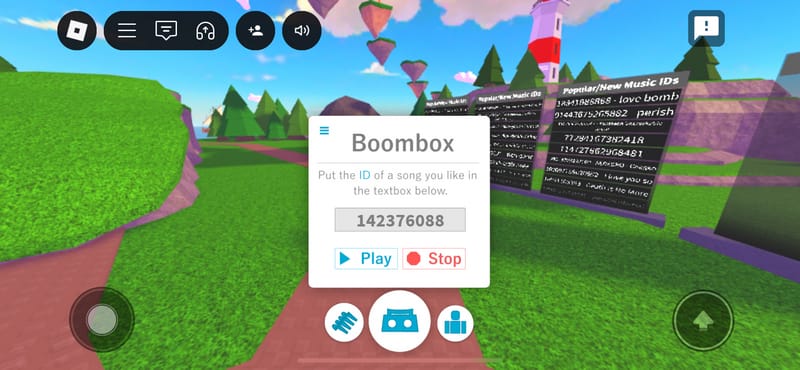
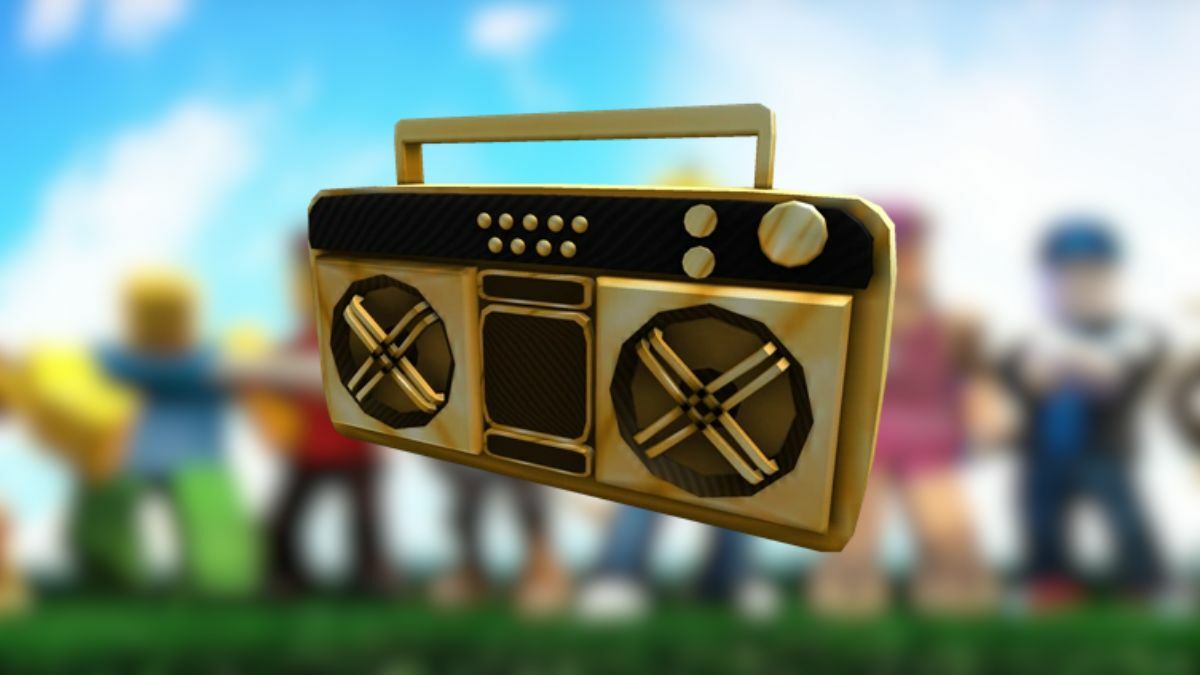
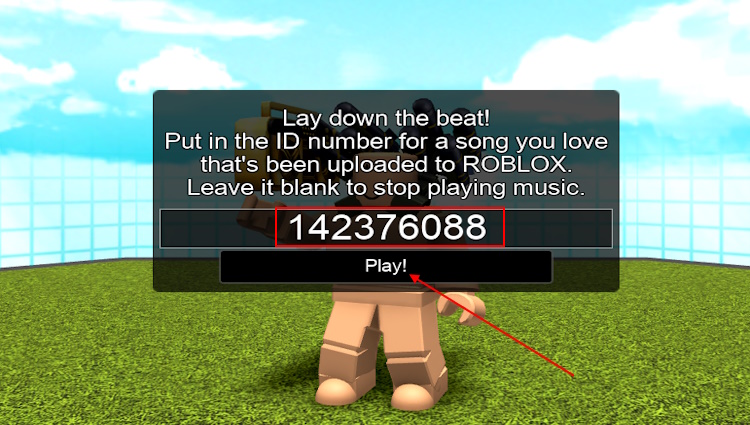
Boomboxes and Radios: In many Roblox games, developers might implement virtual boomboxes or radios that players can purchase or find. These items usually come with a limited library of licensed or royalty-free tracks chosen by the developer. Sometimes, these items allow players to input Roblox audio IDs, which correspond to specific, user-uploaded sound files on the Roblox platform. However, these user-uploaded sounds are strictly moderated and must also adhere to Roblox’s copyright and content policies.
Developer-Curated Soundtracks: Some highly polished games on Roblox feature extensive, developer-curated soundtracks designed to enhance the specific game's atmosphere. These are integrated directly into the game's code and play automatically. They are excellent for immersion but offer no player choice.
Sound Effects and Ambiance: Beyond music, developers heavily use sound effects and ambient audio to bring their worlds to life. These are integral to gameplay and often provide crucial cues, making the balanced audio tips mentioned earlier even more important.
It is important to remember that any in-game music features are at the discretion of the game developer and are subject to Roblox's platform rules. They offer a taste of music within the Roblox universe but do not replace the personalized experience of external streaming.
What Are the Performance Impacts of Running Music Apps Alongside Roblox?
For gamers balancing work and life, every moment counts, and stuttering gameplay due to too many open apps is a common pain point. Running a music streaming app alongside Roblox does consume additional system resources, but the impact largely depends on your device and the apps themselves.
CPU and RAM Usage: Both Roblox and your music app require CPU cycles and RAM. Modern PCs with 8GB RAM or more generally handle both without issue. On older machines or budget laptops, you might notice a slight dip in frame rates or longer loading times if you have many background processes. Mobile devices, especially, can feel this impact, leading to faster battery drain and potential heat buildup.
Network Bandwidth: Streaming music requires internet bandwidth. While most modern broadband connections can easily handle both gaming and music streaming simultaneously, if you are on a very slow or congested Wi-Fi network, you might experience higher ping in Roblox or buffering in your music app.
Optimization Tips: To minimize performance impact: close unnecessary browser tabs and background applications, ensure your operating system and graphics drivers are up to date, and consider using the 'lite' versions of music apps if available. For mobile, reducing the streaming quality in your music app settings can also help conserve battery and data. For competitive play, you might consider turning off external music to ensure maximum performance.
Generally, for casual play, the performance impact is minimal on most modern devices. If you encounter issues, troubleshoot by closing other applications first.
Is Using Third-Party Music Software or Mods with Roblox Allowed?
This is a critical area where caution is paramount. While using legitimate external streaming apps like Spotify is perfectly fine, the use of third-party software or 'mods' that attempt to inject custom music directly into the Roblox client or modify its behavior is strongly discouraged and often against Roblox's Terms of Service.
Risks of Account Bans: Roblox has sophisticated anti-cheat and moderation systems. Any unauthorized modification of the game client can be detected and lead to temporary suspensions or permanent account bans. It is simply not worth risking your account, especially if you have invested time and Robux into it.
Security Concerns: Third-party software from unofficial sources can contain malware, viruses, or spyware. Downloading and installing such programs can compromise your personal data, computer security, and even your Roblox account credentials. Always stick to official sources for any software downloads.
Unstable Gameplay: Mods or unofficial software can also cause game crashes, bugs, or other instability, ruining your gaming experience and potentially corrupting game files.
As a rule of thumb: if it sounds too good to be true, or requires you to download something from an unofficial website to 'hack' music into Roblox, steer clear. Stick to tried and true methods like external streaming apps.
How Can I Ensure My Music Experience is Seamless and Immersive?
Beyond technical setups, making your music truly enhance your Roblox play involves a bit of personal touch. The average gamer, around 36 years old, often seeks relaxation and fun in their limited gaming time, so a smooth experience is vital.
Personalized Playlists: Create playlists specifically for different Roblox activities. For instance, a chill lo-fi mix for building games, an energetic EDM playlist for action-packed experiences, or a calm instrumental selection for social hangouts. This month, social and cozy games are trending, so a laid-back playlist could be perfect for those.
Genre Matching: Think about the vibe of the game you are playing. Does it call for epic orchestral scores, retro synthwave, or perhaps just ambient nature sounds? Matching the genre elevates immersion. Many gamers find instrumental music less distracting than lyrical songs.
High-Quality Audio: If your bandwidth allows, stream music at a higher quality. This can make a noticeable difference, especially with good headphones, enriching the overall audio landscape.
Quick Controls: Familiarize yourself with your device's media controls. On PC, dedicated media keys on your keyboard let you pause, skip, and adjust volume without alt-tabbing. On mobile, the notification shade or control center offers similar quick access, minimizing disruption to your game.
Discord Integration: If you are playing with friends and using Discord for voice chat, consider using a music bot within your Discord channel. This allows everyone in the call to listen to the same music, creating a shared, social audio experience while you all play Roblox together. This is a popular trend for community-driven gaming.
By investing a little time in curating your audio, you can turn a good Roblox session into a truly great one.
What are some trending music genres or playlists popular with Roblox players this month?
Keeping up with current trends can make your music choices even more relatable and enjoyable. This month, mirroring broader gaming and digital trends, many Roblox players are gravitating towards:
Lo-Fi Hip Hop and Chillwave: Perfect for building, exploring, or just relaxing in social games. Its calm, unobtrusive beats are ideal for focus and stress relief, a major draw for adult gamers. Playlists titled 'Lo-fi beats for studying/gaming' are perennially popular.
Synthwave and Retro Electro: For games with a futuristic or nostalgic vibe, synthwave provides a cool, energetic backdrop. It is often found in fast-paced action games or aesthetically driven experiences.
Instrumental Game Soundtracks: Many gamers appreciate the work of composers from other popular titles. Searching for 'epic gaming soundtracks' or 'fantasy instrumental music' can yield fantastic results that enhance the sense of adventure in Roblox worlds.
Vaporwave and Ambient Music: For truly immersive and atmospheric experiences, or just unwinding, genres like vaporwave and ambient electronic music create a unique sonic landscape that complements slower-paced or creative Roblox games.
These trends reflect a desire for music that enhances immersion without being too distracting, aligning with the needs of gamers who often use their playtime to de-stress and unwind after a busy day.
Conclusion
So, can you listen to music while on Roblox? Absolutely! While Roblox's internal music options are limited by design, external streaming services provide a powerful and flexible solution to personalize your gaming soundtrack. By understanding how to balance audio, optimize performance, and avoid risky third-party software, you can transform your Roblox experience from good to truly great. Whether you are building, exploring, or socializing, the right music can enhance your immersion, help you relax, or energize your gameplay. Remember to prioritize safety, optimize your settings, and most importantly, enjoy the beats.
What's your go-to playlist for a Roblox session? Share your biggest gaming challenge with audio in the comments below!
FAQ Section
What are Roblox audio IDs?
Roblox audio IDs are unique identifiers for sound assets uploaded to the Roblox platform. Game developers can use these IDs to incorporate sounds and music into their specific games. Users cannot upload personal music to be played globally via IDs, but rather developers curate and upload sounds that adhere to Roblox's strict copyright and content guidelines for use within their experiences.
Can I stream my Roblox gameplay with external music?
Yes, you can stream your Roblox gameplay while listening to external music. However, if you are planning to share or monetize your streams, be extremely cautious about copyright. Using copyrighted music in your streams without proper licensing can lead to demonetization, content takedowns, or even channel strikes on platforms like Twitch or YouTube. It is best to use royalty-free music or music you have explicitly licensed for streaming.
Does Roblox have built-in voice chat to talk while listening to music?
Roblox does offer built-in voice chat, primarily for users aged 13 and older, in supported experiences. You can listen to external music while using Roblox voice chat. However, balancing the volumes of your music, game audio, and voice chat is crucial to ensure clear communication with your friends without overwhelming the conversation with your background tunes.
How do I stop Roblox game music from playing entirely?
To stop Roblox game music from playing entirely, access the in-game settings menu (often by pressing Esc on PC or tapping the gear icon on mobile). Look for the 'Audio' or 'Sound' options and locate the 'Music Volume' slider. Drag this slider completely to zero. This will silence all in-game music, allowing you to enjoy your external music uninterrupted.
Is it better to use headphones or speakers for music with Roblox?
Using headphones is generally superior for listening to music while playing Roblox. Headphones provide better sound isolation, clearer audio, and allow for a more precise balance between game sounds and external music without disturbing others. They also prevent audio bleed that can occur with speakers, especially if you are using voice chat.
Can I listen to music on Roblox on my phone or tablet?
Yes, you can listen to music on your phone or tablet while playing Roblox. Simply open your preferred music streaming app (like Spotify, Apple Music, or YouTube Music), start your music, and then switch to the Roblox app. Most mobile operating systems are designed to keep audio playing in the background while you use another app. Use your device's volume controls to adjust the mix.
Are there any Roblox experiences designed specifically for music playback?
While no official Roblox experiences are designed *solely* for playing your personal music library, many social hub games or role-playing experiences incorporate features like in-game radios or boomboxes where players can queue up Roblox-approved audio IDs. Some experiences are also built around musical themes, live concerts (featuring Roblox creators), or rhythm-based gameplay, often with their own curated soundtracks. These are great for communal music experiences within the platform.
Integrated music options on Roblox are limited due to copyright. Most players use external music apps like Spotify or Apple Music. Balancing game audio and external music is crucial for immersion. Third-party tools exist but carry risks. Understanding Roblox's terms of service is vital for safe music integration. Performance considerations for simultaneous app usage are important for older devices.
35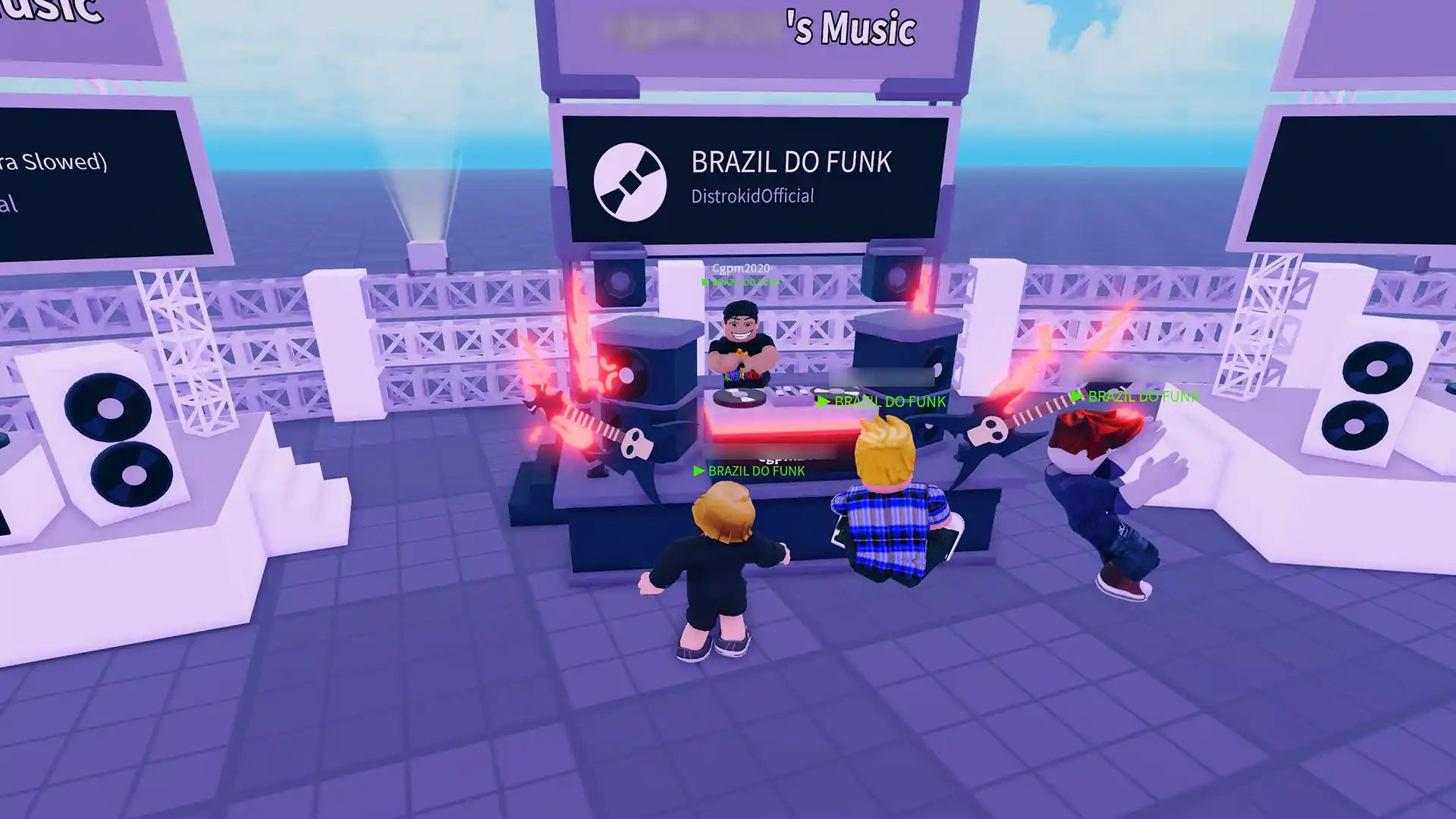
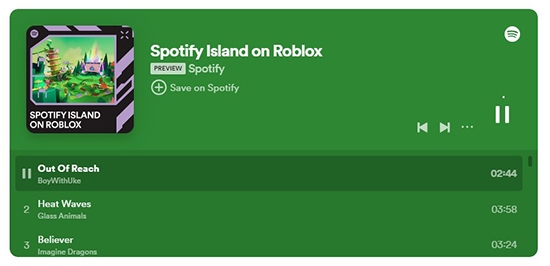


50 Best Roblox Phonk Songs ID Codes 2026 Roblox Players Listening To Music.webp. How To Listen To Spotify Music While Playing Roblox Spotify Island On Roblox Playlist . How Do I Listen To Music While Playing Roblox . How Do I Listen To Music While Playing Roblox . How To Listen To Music While Playing Roblox Ipad Why Can T I Listen To


How Do I Listen To Music While Playing Roblox . Listen To Music While Playing Roblox All Devices How To Play Your . How To Listen To Music While Playing Roblox A Guide How To Listen To Music While Playing Roblox . Roblox Rhythms Keep Your Music Flowing How Can I Listen To Music While Playing Roblox . How To Listen To Music While Playing Roblox Fixed Alvaro Trigo S Blog Cant Listen Music Playing Roblox Mobile


How To Listen To Spotify While Playing Roblox Full Guide YouTube . How To Listen To Spotify While Playing Roblox Without Pausing Play Roblox With Spotify On . How To Listen To Music While Playing Roblox TuneCable Play Music On Roblox With Boombox . Roblox Music Codes March 2026 1c13bba3 Ceab 425d 8fa9. Roblox Music Codes June 2026 Insider Gaming Roblox Boombox 1024x576


How To Listen To Music While Playing Roblox Gamer Tweak How To Play Music While Playing Roblox . How To Listen To Spotify While Playing Roblox In 5 Ways Spotify Roblox 300x169 . How To Listen To Spotify Music While Playing Roblox On Iphone Or Ipad . How To Listen To Music While Playing Roblox Solved How To Listen To Music While Playing Roblox . How To Play Music While Playing Roblox Listen To Music In Game How To Play Music While Playing Roblox 300x169


How To Listen To Music While Playing Roblox In 2025 YouTube . Roblox Song IDs 2024 Roblox Music IDs . 20 Roblox Full Music Codes IDs January 2026 WORKING ROBLOX ID . How To Play Pokemon ZA 60FPS On PC January 2026 Pro Guide Roblox Music Codes . Roblox Music Codes June 2026 The Best Song IDs Beebom Best Roblox Music Codes And ID

Roblox How To Listen To Music While Playing Steps For Playing Music On Spotify 1 . How To Listen To Music While Playing Roblox TuneCable How To Listen To Music While Playing Roblox . Roblox Music Codes June 2026 The Best Song IDs Beebom Roblox Music Code Redeem And Play Button . How To Listen To Music While Playing Roblox The Next Hint How To Listen To Music While Playing Roblox 400x267 . How To Listen To Music While Playing Roblox Image


Roblox Launches Listening Parties A New Way To Release Music Roblox. How To Listen To Music While Playing Roblox In SECONDS YouTube . Mic Games In Roblox At Harrison Fong Blog . List Of The Most Popular Roblox Music Codes For April 2026 354 . How To Listen To Music While Playing Roblox Tips Tricks And Benefits How To Listen To Music While Playing Roblox