Navigating Roblox privacy settings is crucial for any gamer looking to balance social interaction with personal space. This comprehensive guide on how to turn joins on Roblox offers practical, step-by-step instructions for managing who can join your game, optimizing your experience whether you are looking for private relaxation or dynamic social play. For the average gamer, often juggling work and family, understanding these controls means more efficient, enjoyable gaming sessions. We dive into account-wide settings, specific game experience adjustments, and mobile-friendly tips to ensure you have full command over your Roblox social interactions. Discover how to enhance your gameplay, protect your privacy, and connect with friends on your terms. This month's trends show a continued focus on social gaming and player control, making these settings more relevant than ever for a seamless experience.
How to Turn Joins On Roblox?
To turn joins on Roblox, log in to your account, navigate to Settings, then Privacy. Under the "Who can join me in experiences?" section, select "Friends" or "Everyone" from the dropdown menu to allow others to join your game sessions. This setting controls your general visibility across the platform.
Why Are My Friends Unable to Join Me on Roblox?
If your friends cannot join you on Roblox, first check your Privacy settings under "Who can join me in experiences?" to ensure it's not set to "No One." Also, confirm they are on your friends list, that the game server isn't full, or that you aren't in a private server without inviting them directly. A simple app restart can also sometimes resolve temporary connection issues.
Can I Stop Specific People from Joining My Roblox Game?
Yes, you can stop specific individuals from joining your Roblox game. The most effective way is to block them via their profile page. Locate their profile, click the three dots icon, and select "Block User." This action prevents them from joining your experiences, sending messages, or interacting with you in any way on the platform.
What Are Roblox Privacy Settings for Joining Games?
Roblox privacy settings for joining games are found in your account's Privacy section. The key setting is "Who can join me in experiences?" with options like "Everyone," "Friends," or "No One." These controls dictate who can follow you into an active game, giving you ultimate command over your social presence in Roblox.
How Do I Set Up a Private Game on Roblox for Friends Only?
To set up a private game for friends only on Roblox, first, ensure your general "Who can join me in experiences?" setting is set to "Friends." Alternatively, for many popular games, you can purchase a VIP (private) server. These servers allow you to directly invite specific friends by username or share an exclusive invite link, providing granular control over access.
Is There a Way to Join a Friend's Roblox Game if My Joins Are Off?
Yes, even if your own "Who can join me in experiences?" setting is off, you can still join a friend's game if their settings permit it. Your friend can send you a direct in-game invitation, or if they own a private server, they can send you an invite link or add your username to their access list. Your personal join-off setting only affects others joining *you*.
How Do I Know if My Roblox Joins Are Turned On?
You can verify if your Roblox joins are turned on by navigating to your account Settings, then Privacy. Look at the "Who can join me in experiences?" dropdown menu. If it's set to "Friends," "Friends, Followers, and Following," or "Everyone," then your joins are enabled for those respective groups. If it's set to "No One," joins are off.
Hey fellow gamers! We all know the drill: you finally carve out some precious time for gaming after a long day of work, family commitments, and life's endless to-dos. You just want to jump into Roblox, unwind, maybe connect with some friends, or dive into a solo adventure. But sometimes, the social aspect can be a double-edged sword. Unwanted joins, random players popping into your private server, or not being able to easily connect with your actual buddies can turn a relaxing session into a frustrating one. You're not alone if you've ever thought, "There has to be an easier way to control who joins my game!"
You're in luck. In 2026, where 87% of US gamers regularly play and many dedicate over 10 hours a week to their passion, optimizing your gaming experience for both fun and efficiency is key. With mobile gaming dominating and social play being a core trend, mastering your Roblox join settings is more relevant than ever. This guide is built for you – the adult gamer who values their time, wants seamless social connections, and deserves a hassle-free experience. We'll show you exactly how to turn joins on Roblox, manage your privacy, and ensure your game time is always on your terms. Let's dive into mastering your Roblox world!
How to Turn Joins On Roblox for Your Account?
Controlling who can join your Roblox experience starts with your overall account privacy settings. This is the first and most crucial step in managing your social interactions. Roblox provides robust options to ensure you decide your level of visibility.
To adjust your general join settings:
- First, log in to your Roblox account on either the website or the mobile app.
- Once logged in, navigate to the Settings page. On the website, this is usually accessed by clicking the gear icon in the top right corner and selecting "Settings." On the mobile app, tap the three dots icon ("More") and then select "Settings."
- From the Settings menu, click or tap on Privacy. This section is where you manage who can interact with you across the platform.
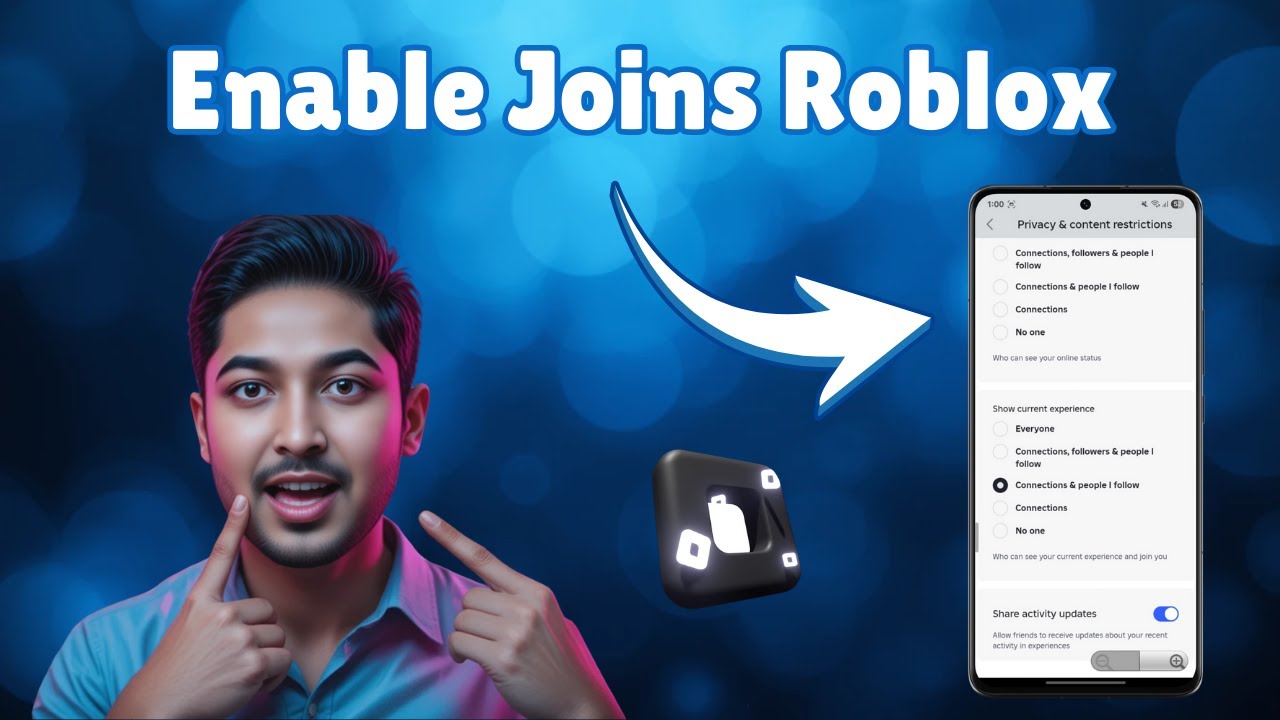
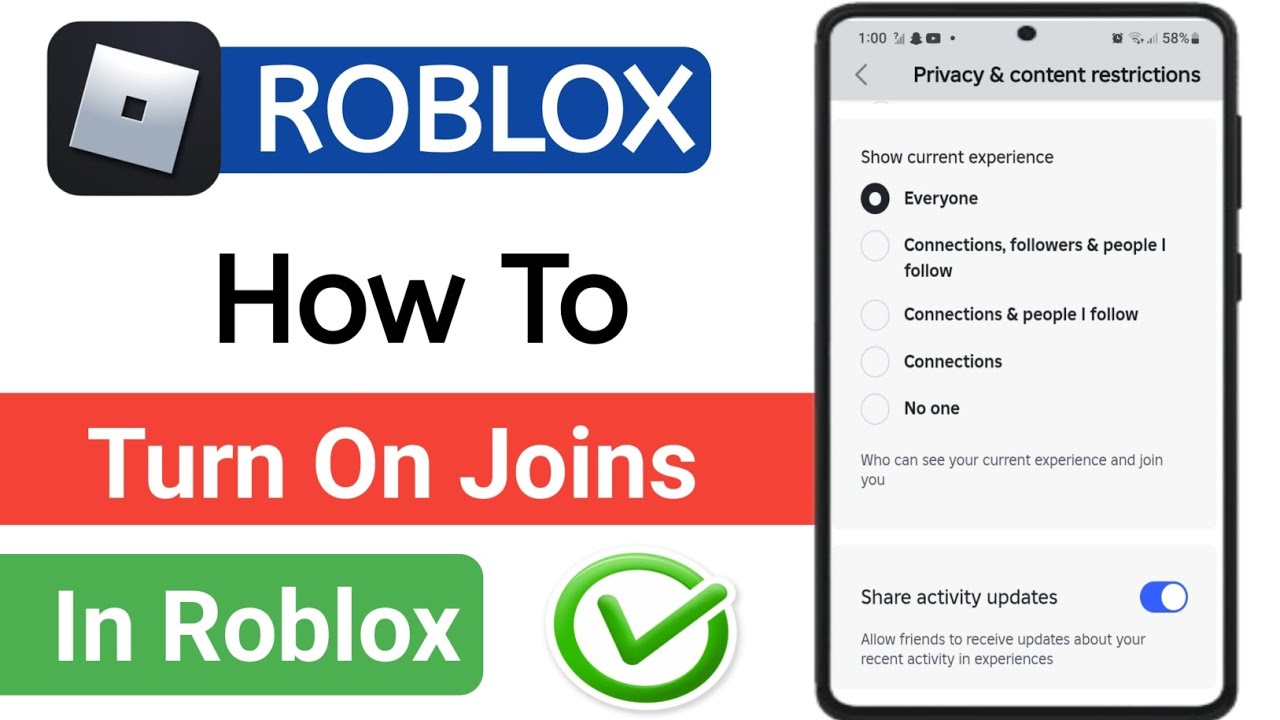
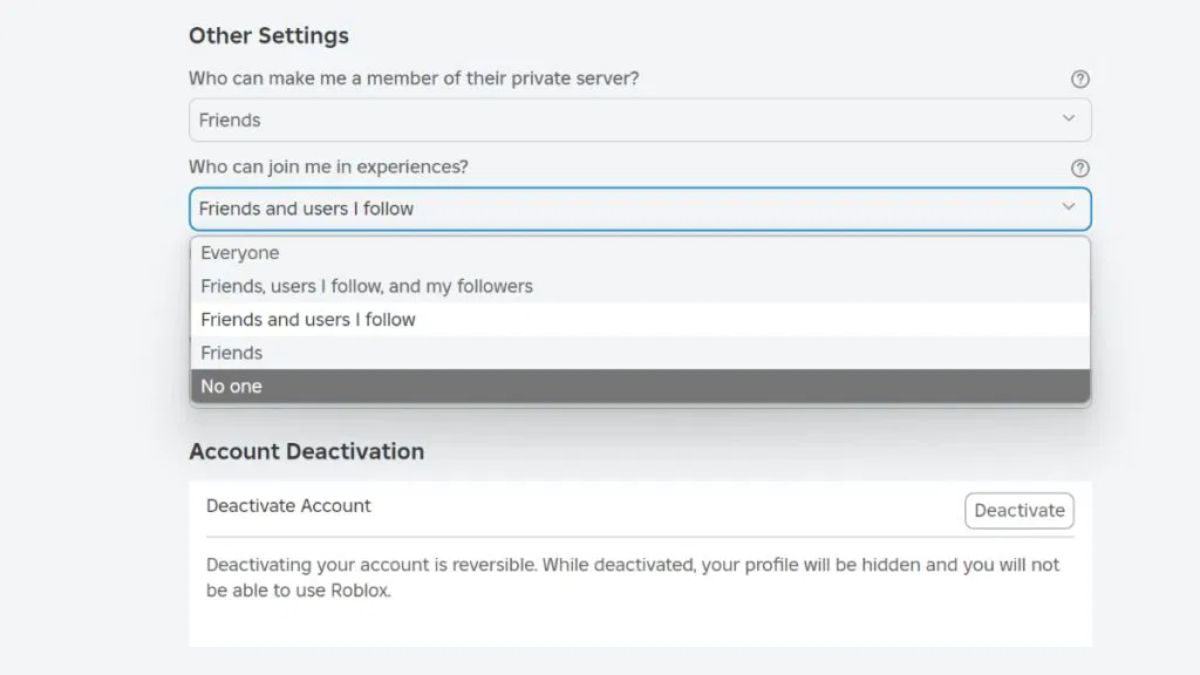
- Scroll down to the "Who can join me in experiences?" section. This is the core setting for controlling joins.
- You'll typically see a dropdown menu with options like:
- Everyone: Any Roblox user can join you in an experience if there's an open slot.
- Friends: Only users on your friends list can join you.
- Friends, Followers, and Following: This expands the circle to include people you follow and who follow you.
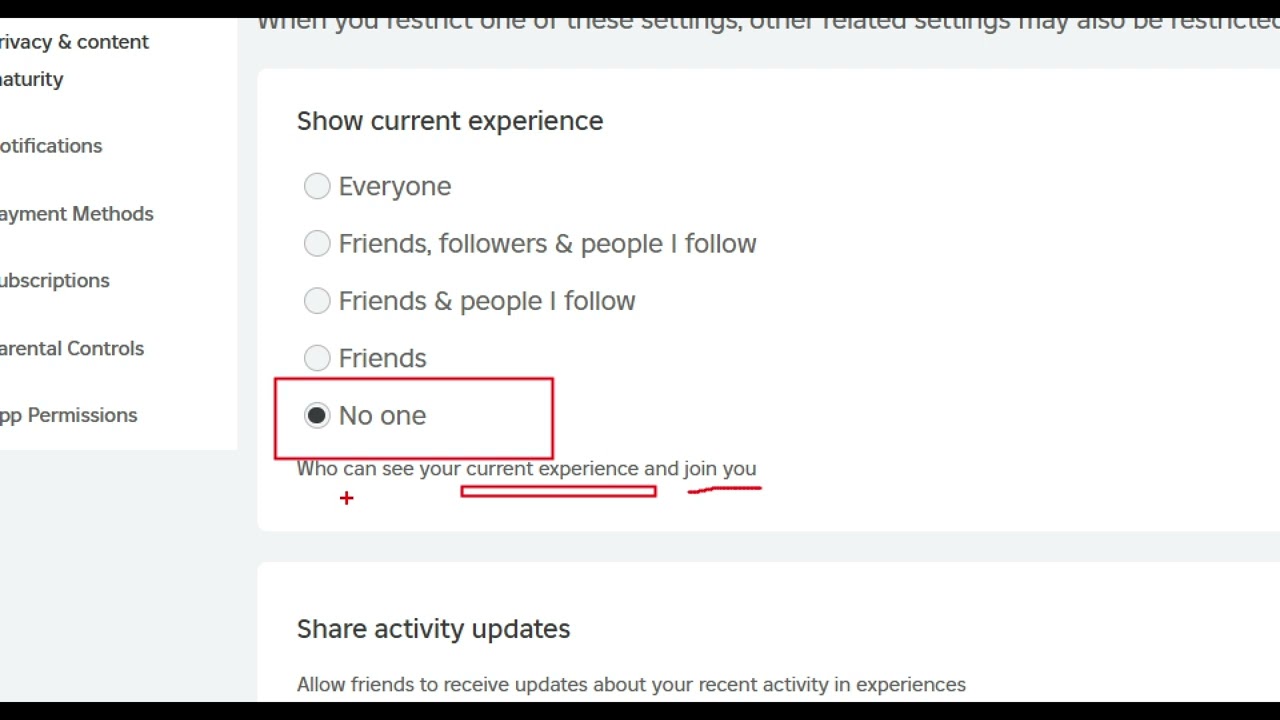
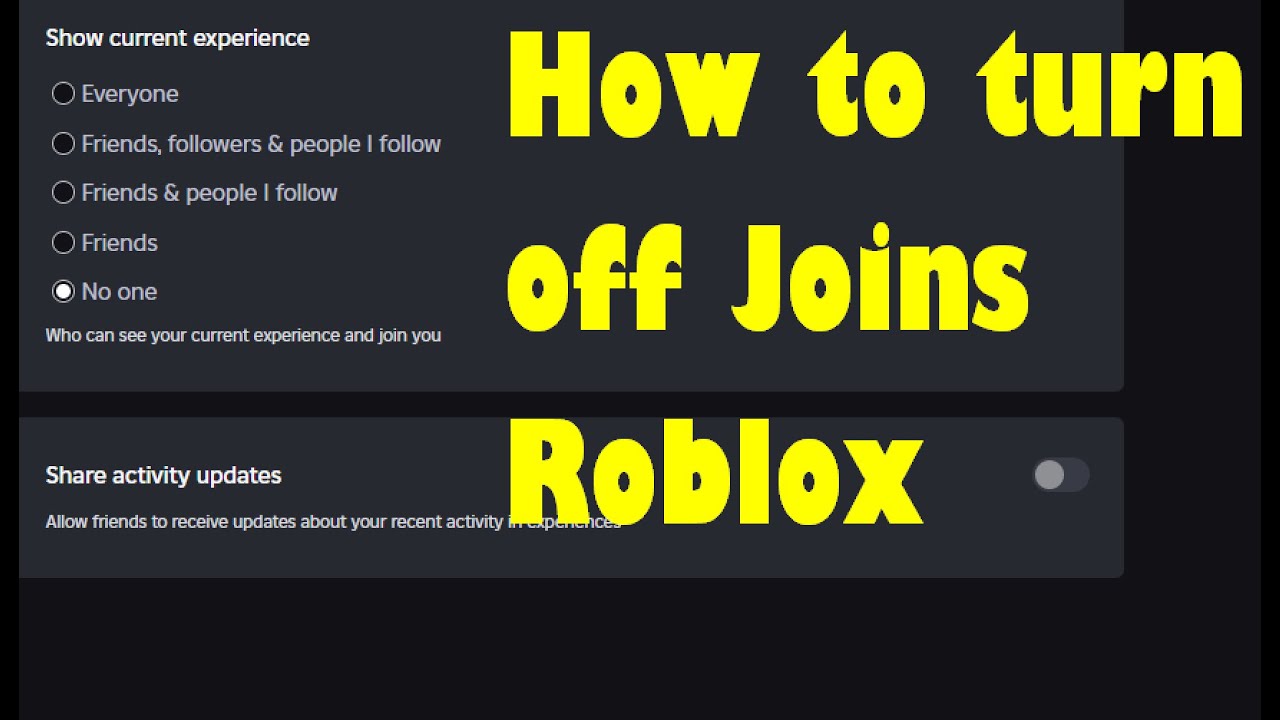
- No One: This completely disables joins for your account, ensuring no one can follow you into an experience directly.
- Select your preferred option. For most gamers looking to allow friends to join, selecting "Friends" is the ideal choice. If you're a content creator or enjoy playing with a broader community, "Everyone" might suit you.
- Remember to save any changes you make. Roblox usually applies these settings immediately, giving you instant control over who can pop into your game.
Adjusting this foundational setting is paramount for adult gamers. It means less time dealing with unwanted interruptions and more time enjoying the experiences you love, whether that's exploring a new cozy game with friends or sharpening your skills in a competitive title.
Why Would I Turn Joins On or Off in Roblox?
The decision to enable or disable joins on Roblox comes down to a balance of privacy, social interaction, and gameplay preference. Busy adults often value their limited gaming time, and controlling who can join directly impacts that experience.
- Enhanced Privacy: Turning joins off ensures that only you, or specifically invited individuals, can access your current game session. This is ideal for sensitive conversations, focused gameplay, or simply enjoying a peaceful solo experience without unexpected company. It's like having a digital "do not disturb" sign.
- Social Gaming with Friends: Turning joins on, especially for "Friends," makes it incredibly easy for your trusted buddies to connect with you. Instead of coordinating invites, they can simply see you're in an experience and jump right in. This fosters spontaneous social interactions, a key aspect of why many US gamers, particularly millennials and Gen Z, enjoy platforms like Roblox and Discord for connecting with their community.
- Preventing Harassment or Unwanted Interactions: If you've had negative experiences with certain players, disabling joins or setting them to "Friends" only can significantly reduce unwanted attention. This is a crucial tool for maintaining a positive and safe gaming environment.
- Content Creation and Streaming: For those who stream or create content on Roblox, managing joins is vital. You might want "Everyone" enabled during public events or collaborations but prefer "No One" for recording private content or testing builds.
- Performance Optimization: While less common, too many players joining an experience, especially a custom-built or resource-intensive one, can sometimes impact performance. Limiting joins can help ensure a smoother experience, particularly on older hardware or mobile devices.
Ultimately, the power to choose is in your hands. Roblox offers these settings so you can tailor your experience to match your current mood, the game you're playing, and the company you wish to keep.
Can I Control Who Joins My Game on Roblox More Specifically?
Yes, beyond the general account-wide settings, Roblox provides additional layers of control for specific experiences, allowing you to fine-tune who can join. This is particularly useful for creators or players who frequently host private sessions.
While your primary account privacy setting (e.g., "Friends only") dictates who can initially attempt to join you, some experiences or private servers offer their own specific settings:
- Private Servers (VIP Servers): Many popular Roblox experiences allow players to purchase a "private server" or "VIP server." These servers give you exclusive control. You can usually:
- Set the server to be Friends Only.
- Allow specific Roblox users by username to join.
- Generate an invite link to share with anyone you want to grant access.
- Remove or kick players from the server.
This is the most granular control you can get over who joins a specific instance of a game. It's perfect for family play, team practice, or simply ensuring a peaceful experience with chosen companions.
- Experience-Specific Settings (for Creators): If you are a Roblox experience creator, you have even more control over your own published games. In the Roblox Studio and on the Create Dashboard, you can:
- Configure whether your experience is public or private.
- Manage permissions for specific users or groups.
- Control aspects like player limits and server types.
This level of detail is usually for developers, but it's good to know that the platform supports extensive customization for those building the worlds we play in.
For the average player, focusing on your account's privacy settings and utilizing private servers when available will give you excellent control over your join experience. This flexibility ensures that whether you're playing a quick round on your phone during a commute or dedicating an evening to a PC title, your social interactions are managed efficiently.
What Are the Different Roblox Privacy Settings for Joins?
Roblox offers a multi-layered approach to privacy, allowing gamers to control not just who can join them, but also who can interact with them in other ways. Understanding these distinctions is key to a secure and enjoyable experience, especially for those balancing gaming with real-world responsibilities.
The primary privacy settings related to joins are found under your account's "Privacy" tab:
- Who can join me in experiences? This is the direct control for turning joins on or off for your public presence. Options are typically "Everyone," "Friends," "Friends, Followers, and Following," or "No One." Setting this to "Friends" is a popular choice for adult gamers seeking a balanced social environment.
- Who can send me messages? While not directly a join setting, this impacts who can communicate with you to *ask* to join or discuss joining. Options range from "Everyone" to "No One," with "Friends" being a common choice.
- Who can chat with me in experience? Similar to messages, this controls in-game chat. If you're looking for a truly private experience, limiting this can prevent unwanted chatter from players who might try to join.
- Who can friend me? Managing your friend requests indirectly impacts joins. If you only allow "Friends" to join you, then controlling who can send you friend requests is an important precursor. Options here include "Everyone" and "No One."
- Who can see my inventory? While not related to joins, it's part of the broader privacy suite. Many experienced gamers prefer to keep this private to avoid scams or unwanted attention.
These settings collectively create your personal Roblox security profile. Regularly reviewing them, perhaps once a month, ensures they align with your current preferences and gaming habits. This proactivity helps prevent issues, allowing you to focus on the fun rather than managing unwanted social interactions.
How Do Joins Impact My Roblox Gaming Experience?
The ability to manage joins significantly shapes your Roblox experience, influencing everything from social dynamics to game flow and personal enjoyment. For the dedicated adult gamer, these impacts are critical to maximizing limited play time.
- Social Connection and Disconnection: When joins are enabled for friends, it fosters seamless, spontaneous social play. Friends can easily see you in a game and jump in, leading to impromptu collaborations or just a casual hangout. This aligns with recent trends showing an increased desire for social and cozy gaming experiences among adult players. Conversely, disabling joins can provide a much-needed digital escape, allowing you to focus on a challenging game, explore new worlds solo, or simply decompress without interruption.
- Privacy and Security: Controlling joins is a fundamental aspect of online privacy. By limiting who can join you, you reduce exposure to unwanted interactions, potential harassment, or even phishing attempts that can sometimes occur in public gaming spaces. This sense of security is vital for maintaining a positive gaming environment, especially for those balancing online interaction with real-world responsibilities.
- Gameplay Flow and Immersion: In certain games, unexpected joins can break immersion or disrupt critical moments. Imagine being in the middle of a complex puzzle or a high-stakes competitive match, only for a random player to appear. Managing joins ensures that your gameplay flow is dictated by your preferences, not by external factors.
- Resource Management (Though Minor): While Roblox is highly optimized, having many players in an experience can, in some rare cases, slightly impact performance, especially on older mobile devices or less powerful PCs. By controlling joins, particularly in custom or less optimized experiences, you can theoretically contribute to a smoother, lag-free session. This consideration, while minor, still contributes to overall game satisfaction.
- Content Creation: For aspiring streamers or YouTubers, managing joins is crucial. You might need to disable joins for recording high-quality content or enable them strategically for community events, making your channel more interactive.
In essence, controlling joins empowers you to curate your Roblox journey, ensuring it aligns perfectly with your preferences for social engagement, personal space, and optimal gameplay.
Are There Quick Ways to Manage Joins on Mobile Roblox?
Absolutely! Given that a significant portion of US gamers, including many busy adults, rely on mobile for their gaming fix, Roblox ensures that managing joins is just as intuitive on a smartphone or tablet as it is on a desktop. Quick access to these settings is crucial for on-the-go adjustments.
Here's how to quickly manage joins on your mobile device:
- Open the Roblox App: Launch the Roblox application on your iOS or Android device.
- Access Settings: Tap the three dots icon (...), usually located in the bottom right corner of the screen. This will open the "More" menu.
- Navigate to Privacy: Scroll down and select "Settings," then tap "Privacy."
- Adjust Join Preferences: Locate the section titled "Who can join me in experiences?" Tap the dropdown menu and select your desired option: "Everyone," "Friends," "Friends, Followers, and Following," or "No One."
- Confirm Changes: Your selection will typically be saved automatically.
For even quicker access, remember that your mobile device's operating system (iOS or Android) might offer shortcuts or quick settings panels that can sometimes launch directly into app settings, though not usually into specific in-app privacy menus. However, the in-app method is streamlined for efficiency. Many adult gamers appreciate this mobile-first design, as it allows them to adjust settings during a quick break or while waiting, ensuring their next gaming session is exactly how they want it, without needing to boot up a PC.
How to Block or Unfriend Someone to Prevent Joins?
Sometimes, simply adjusting your general join settings isn't enough, especially if a specific individual is causing issues. Roblox provides robust tools to manage individual relationships, including blocking and unfriending, which directly impact their ability to join your games. This is a vital feature for maintaining a healthy and safe online environment.
To Unfriend a User:
If someone is on your friends list and you no longer wish for them to be able to join you (assuming your join settings are set to "Friends"), unfriending them is the most direct approach.
- Go to the user's profile page. You can do this by searching for their username or by clicking on their avatar in an experience or your friends list.
- On their profile, you'll see a button that typically says "Friend" or shows an icon indicating you are friends. Click or tap this button.
- Select the option to "Unfriend." A confirmation prompt may appear.
- Once unfriended, they will no longer be able to directly join your experiences if your privacy settings are set to "Friends."
To Block a User:
Blocking is a more severe action, preventing a user from contacting you, seeing your activities, and definitely from joining your experiences, regardless of your privacy settings. This is recommended if you're experiencing harassment or persistent unwanted contact.
- Go to the user's profile page.
- Look for the three dots icon (...) in the upper right corner of their profile.
- Click or tap the three dots to open a dropdown menu.
- Select "Block User."
- A confirmation message will appear, explaining what blocking does. Confirm your decision.
Once blocked, that user will be unable to interact with you in almost any way on Roblox. This includes sending messages, viewing your profile, sending friend requests, and most importantly, joining any experience you are currently in. For adult gamers dealing with online toxicity or simply wanting to curate their social space more aggressively, blocking is an indispensable tool. It helps ensure that your valuable gaming time remains a source of relaxation and fun, not stress.
What if My Roblox Join Settings Aren't Working as Expected?
Even with the right settings, sometimes things don't go as planned. If you've set your Roblox join preferences but find that unwanted players are still joining or friends can't connect, don't panic. There are a few common reasons and troubleshooting steps to consider, which can often resolve the issue quickly.
- Check All Privacy Settings: Double-check your account's main privacy settings under "Who can join me in experiences?" Ensure it's set exactly as you intend. Sometimes a quick glance isn't enough; re-select the option to confirm.
- Are You in a Private Server? If you're in a private server that you or a friend owns, the private server's specific settings might override your general account settings. For example, if a private server is set to "Anyone can join with a link," your "Friends only" account setting won't prevent someone with that link from joining. Always check the private server's configurations.
- Platform Specifics: Are you playing on PC, mobile, or console? While Roblox aims for consistency, slight interface differences can sometimes lead to overlooked settings. Verify settings on the platform you primarily use.
- Temporary Glitch: Occasionally, Roblox itself might experience a temporary bug or delay in applying settings. Try logging out and logging back into your account. A full restart of the Roblox application or even your device can sometimes resolve minor glitches.
- Browser Cache/App Data: For web users, clearing your browser's cache and cookies can often fix display or functionality issues. On mobile, clearing the Roblox app's cache (via your device settings) can also help.
- Block/Unfriend in Effect? If a specific person is still joining despite your settings, ensure you have correctly unfriended or blocked them. Double-check their profile to confirm the status.
- Roblox Support: If none of these steps work, and you believe it's a persistent issue, reaching out to Roblox Support is the next best step. They can investigate account-specific problems or potential bugs.
Persistent issues can be frustrating, especially when your gaming time is limited. However, systematically going through these troubleshooting steps usually helps pinpoint and resolve the problem, getting you back to a smooth, controlled Roblox experience.
How to Ensure a Truly Private Gaming Session on Roblox?
For those moments when you absolutely need undisturbed solitude or a highly curated group experience, Roblox offers several methods to ensure your gaming session is truly private. This is particularly valuable for adult gamers who might be looking for a quiet escape or setting up a specific game night with close friends and family.
- Set Account Joins to "No One": The most direct method is to go to your account's Privacy settings and change "Who can join me in experiences?" to "No One." This completely prevents anyone from following you into an experience.
- Utilize Private Servers (VIP Servers): For many popular games, purchasing a private server is the gold standard for privacy. These servers allow you to:
- Control who is invited, often by username or invite link.
- Kick or ban unwanted players.
- Ensure a dedicated, stable environment for your chosen group.
This is often preferred for competitive practice, role-playing with a consistent group, or simply enjoying a game with only your closest friends without public interruptions. The cost is usually minimal, often just a few hundred Robux per month.
- Play in Experiences Without Join Features: Some Roblox experiences are designed as single-player or private instances by default, or they simply don't have public join functionality. While less common for social games, these can offer inherent privacy.
- Combine Settings: For ultimate privacy, combine "Who can join me in experiences?" set to "No One" with playing on a private server where you control the guest list. This creates a highly secure bubble for your gaming session.
- Inform Your Friends: If you're going for a truly private session, a quick message to your friends on Discord or another platform can prevent them from trying to join and wondering why they can't. Clear communication manages expectations and avoids potential misunderstandings.
By leveraging these tools, you can transform your Roblox experience into a personal sanctuary, perfect for relaxation, focused skill-building, or an exclusive social gathering, precisely when you need it.
Can I Invite Specific Friends to Join My Game Without Public Joins?
Yes, absolutely! Roblox understands that gamers often want the best of both worlds: a private experience free from random players, yet with the flexibility to invite specific friends to join them. This feature is especially popular among adult gamers who schedule specific game nights or want to play exclusively with their established social circle.
Here's how you can invite specific friends to your game while keeping public joins off:
- Set Your Account Joins to "No One" or "Friends": First, ensure your general "Who can join me in experiences?" setting in your Privacy settings is set to "No One" if you want absolute control, or "Friends" if you primarily want to manage who from your existing list joins you.
- Utilize the "Invite to Game" Feature:
- When you are in an experience, look for the in-game menu (often accessed by pressing Esc on PC or tapping a specific icon on mobile).
- You should find an option like "Invite Friends" or a similar social button.
- This will typically bring up your friends list. You can then select specific friends and send them an invitation. This invitation allows them to join your current server instance, bypassing the public join mechanism.
- Private Servers with Invite Links: If you're using a purchased private server for an experience, you have even more robust invitation options:
- Go to the private server's settings (usually accessible from the experience's main page outside of gameplay).
- You can often generate a unique invite link. Share this link only with the friends you want to invite. Anyone with the link can join the private server.
- Some private servers also allow you to manually add specific usernames to an access list.
- Using Roblox Chat/Messages: You can also send a direct message or chat message to a friend with a link to the experience you are in, or simply tell them the name of the private server you are in and ensure they are on the access list.
These methods allow you to maintain a high degree of privacy while still enjoying the social aspects of Roblox on your terms. It's about empowering you to control your social connections, making your gaming experience both flexible and secure, a perfect balance for the busy modern gamer.
FAQ: Quick Answers for Your Roblox Join Questions
Here are some frequently asked questions about managing joins on Roblox, designed for quick, clear answers.
How do I turn off joins completely on Roblox?
To completely turn off joins, go to your Roblox account Settings, select Privacy, and under "Who can join me in experiences?" choose the "No One" option from the dropdown menu. This will prevent any user from following you into a game.
What is a Roblox private server and how does it relate to joins?
A Roblox private server (also known as a VIP server) is a dedicated instance of an experience that you or a friend can purchase, giving you exclusive control over who can join. You can set it to invite-only, allowing specific friends to join while keeping others out, effectively overriding general account join settings for that particular server.
Can I prevent someone from joining me even if they are my friend?
Yes, if you wish to prevent a specific friend from joining you, you can either unfriend them or, for a more definitive solution, block them. Blocking a user prevents all forms of interaction, including joining your experiences, regardless of your general join settings.
Do Roblox join settings affect all games?
Your account's general join settings (e.g., "Friends" or "No One") apply across most Roblox experiences. However, specific private servers for certain games might have their own invite settings that can allow specific people to join that server, potentially bypassing your general account settings if they have an invite link or are on an access list.
Why would my friends have trouble joining me even if my settings allow it?
Your friends might have trouble joining due to a few reasons: your game server might be full, you might be in a private server they aren't invited to, there could be a temporary Roblox glitch, or their own privacy settings might be too restrictive. Ensure both your and their settings permit joins, and try restarting the app or game.
Is it possible to let only certain friends join my game?
Yes, the best way to let only specific friends join is to either use a private server where you can handpick who has access via an invite link or an access list, or by setting your account's "Who can join me in experiences?" to "No One" and then using the in-game "Invite Friends" feature to send direct invitations to your chosen friends.
How often should I review my Roblox privacy settings?
It's a good practice to review your Roblox privacy settings periodically, perhaps once a month or whenever there's a significant update to the platform or your gaming habits change. This ensures your settings remain aligned with your preferences for privacy and social interaction, keeping your experience optimal and secure.
There you have it! Mastering how to turn joins on Roblox and managing your privacy settings is all about empowering you, the gamer, to customize your experience. Whether you're seeking a moment of peace, intense competition with a select few, or open social interaction, Roblox provides the tools. Taking control of who joins your game means less time troubleshooting and more time enjoying the worlds and adventures Roblox has to offer. This understanding helps you balance your love for gaming with your busy life, ensuring every session is exactly what you need it to be. What's your biggest gaming challenge? Comment below and let us know how you manage your online privacy!
Control Roblox joins, Manage privacy settings, Allow friends to join, Disable joins on Roblox, Optimize social gameplay, Roblox account settings, In-game join controls, Mobile Roblox privacy, Block players Roblox, Invite friends privately.
35


Roblox Privacy How To Turn Off Joins In Roblox . How To Turn Your Joins On In Roblox On Mobile 2026 YouTube . How To Turn On Joins In Roblox 2026 YouTube . How To Turn On Joins In Roblox App YouTube . Roblox Joins On How To Enable Them In 2026 Appear Offline On Roblox Step 13


How To Turn On Joins For Everyone On Roblox How To Enable And Allow . Roblox Privacy How To Turn Off Joins In Roblox . Roblox Privacy How To Turn Off Joins In Roblox . How To Join Anyone On Roblox With Joins Off Patched 2026 YouTube . ROBLOX TURN ON JOINS IN 2026 QUICK EASY YouTube


How To Turn On Joins In Roblox Allow Friends To Join You YouTube . How To Turn On JOINS In Roblox Enable Roblox Joins YouTube . How To Join Someone On Roblox When Joins Are Off Working 2026 Method . How To Change Your Join On Off On Roblox Mobile 2026 YouTube . Roblox Joins On How To Enable Them In 2026 Turn Off Joins In Roblox Step 17


Roblox Privacy How To Turn Off Joins In Roblox . How To Turn Off Joins In Roblox 2026 YouTube . How To Turn Off Joins In Roblox No Friends Join 2026 YouTube . Roblox Privacy How To Turn Off Joins In Roblox . Roblox Joins On How To Enable Them In 2026 Roblox 2 1


How To Turn Your Joins On In Roblox Turn Off Your Roblox Game Joins . Roblox Privacy How To Turn Off Joins In Roblox . Roblox Privacy How To Turn Off Joins In Roblox . Roblox Privacy How To Turn Off Joins In Roblox . Roblox Privacy How To Turn Off Joins In Roblox




Roblox Privacy How To Turn Off Joins In Roblox . How To Turn Joins On In Roblox Mobile 2026 IPhone IPad Android . Roblox Privacy How To Turn Off Joins In Roblox V4 460px Turn Off Joins In Roblox Step 2 . Roblox Joins On How To Enable Them In 2026 V4 460px Turn Off Joins In Roblox Step 3 . How To Join A Group In Roblox 2026 Step By Step Guide YouTube


How To Easily Turn On Roblox Joins In 2025 UPDATED WAY YouTube . How To Join Roblox Players Seamlessly A 2026 Guide Join Other Roblox Game . Roblox Privacy How To Turn Off Joins In Roblox . HOW TO TURN YOUR JOIN ON In Roblox Change Privacy Settings In ROBLOX . How To Turn Off Joins In Roblox YouTube